This is a pilot feature according to Algolia’s Terms of Service (“Beta Services”). Functionality may change before general availability.
- Verify changes against your real content and layout, not a mocked preview.
- Iterate on theme and layout side by side with the editor and your site.
- Catch issues before end users see them, since saved changes go live immediately.
Embed the preview snippet on your staging environment
Open the Staging snippet
In the editor, open the Integration help dialog and select Staging.
Copy the preview snippet.
Paste it on your staging environment
Paste the preview snippet before the closing
</body> tag of the pages in your staging environment where you want to test the experience.Open the editor in-page
Open a page that includes the preview snippet.
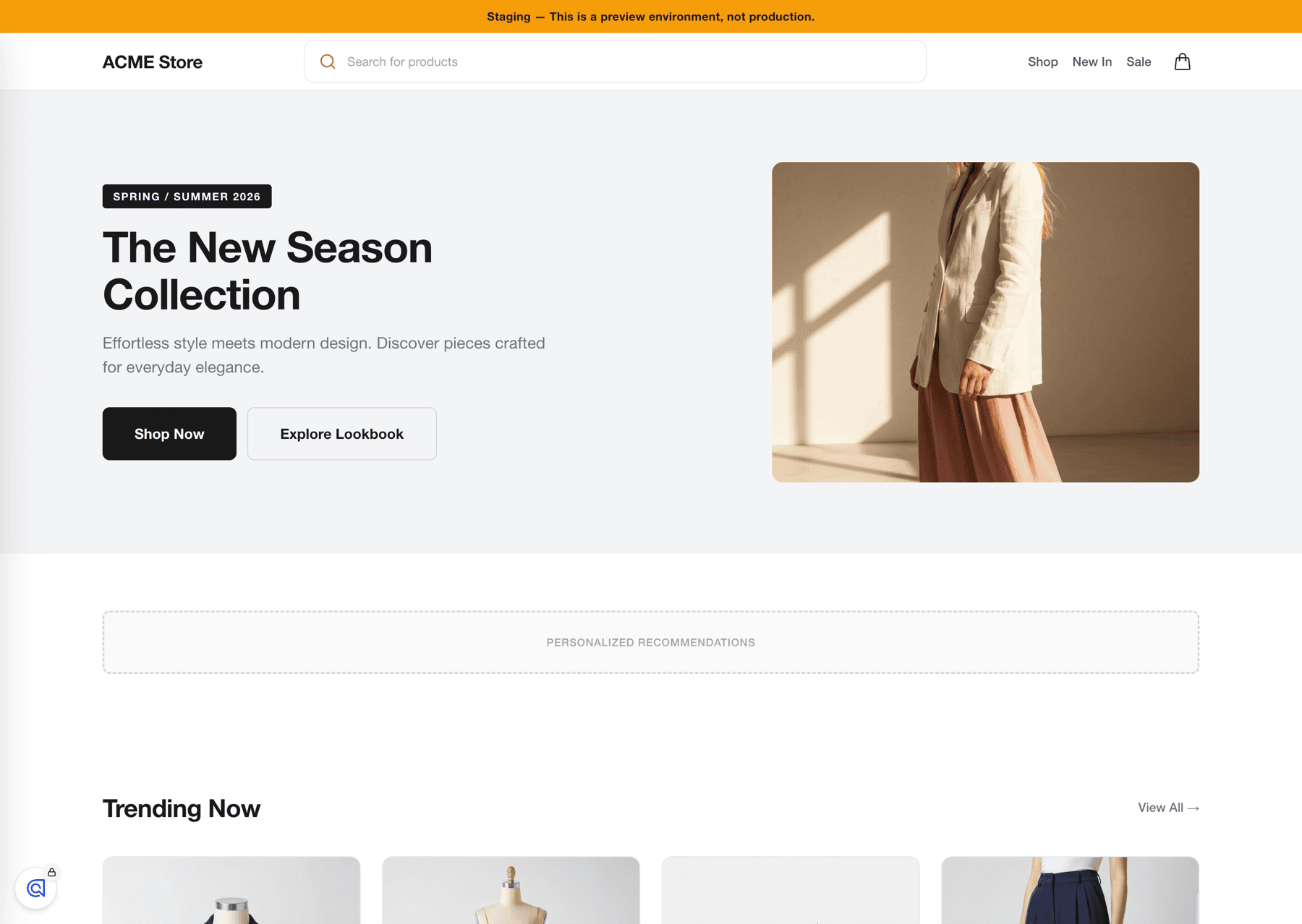
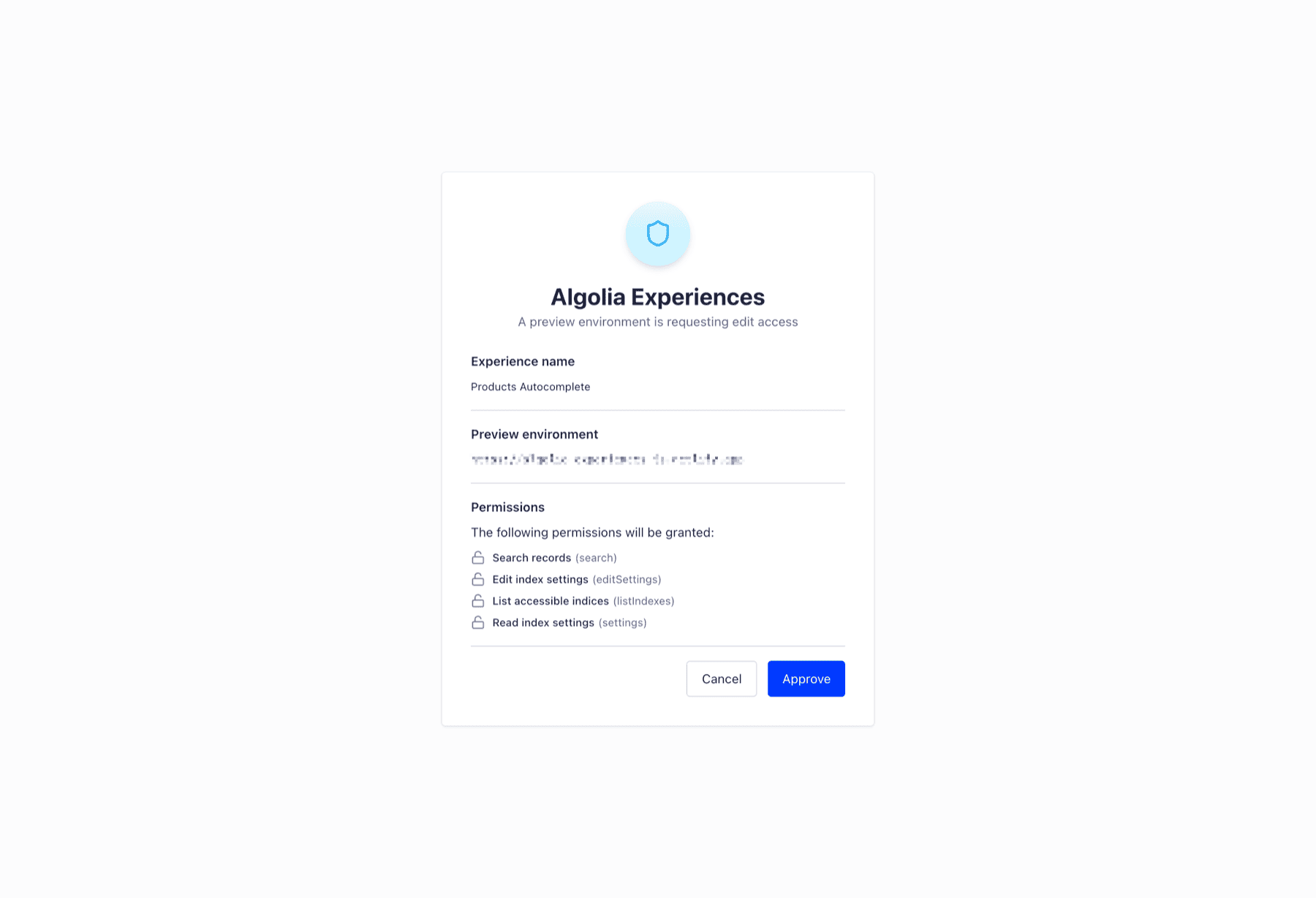
In the bottom-left corner of your page, click the Algolia button.
The editor opens as a side panel in the same browser tab, next to your site.