

This is the React InstantSearch v7 documentation.
If you’re upgrading from v6, see the upgrade guide.
If you were using React InstantSearch Hooks,
this v7 documentation applies—just check for necessary changes.
To continue using v6, you can find the archived documentation.
Before you begin
This quickstart requires:- Basic React knowledge.
- A React ≥ 16.8.0 app. If you don’t have a React app, use this CodeSandbox template.
- An Algolia account. If you don’t have one, create a new account for free.
- An Algolia with
image,categories,name,brand, andpriceattributes. If you don’t have one, use a sample dataset and send it to Algolia. algoliasearchandreact-instantsearchinstalled.
Quickstart
In this quickstart, you’ll add an Algolia search interface to some starter code. The code:- Displays and formats a search box and results
- Uses InstantSearch’s pre-built UI components (widgets) to filter results
1
Add a search box
The main UI component of a search experience is a search box.
It’s often how users discover content in your app.React InstantSearch provides a If you type in the search box, you won’t see any results until you add a
SearchBox widget to display an Algolia search box.React
Replace
INDEX_NAME with the name of your index.hits widget to display them.2
Display search results
Display the results returned by Algolia using the The 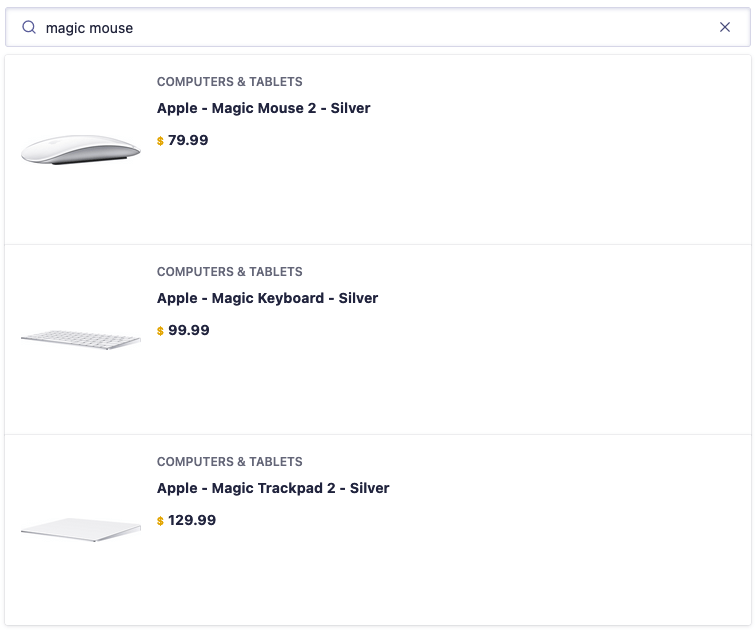
Hits widget.App.jsx
Replace
INDEX_NAME with the name of your index.Hits widget updates whenever you type a character in the search box.3
Highlight matches
It’s not always clear why one result ranks above another.
To help make things more evident to users, you can highlight the parts of a result that match the .Algolia supports highlighting and returns the highlighted parts of a result in the response.
Use the When users type a query, the UI highlights matches in each search result.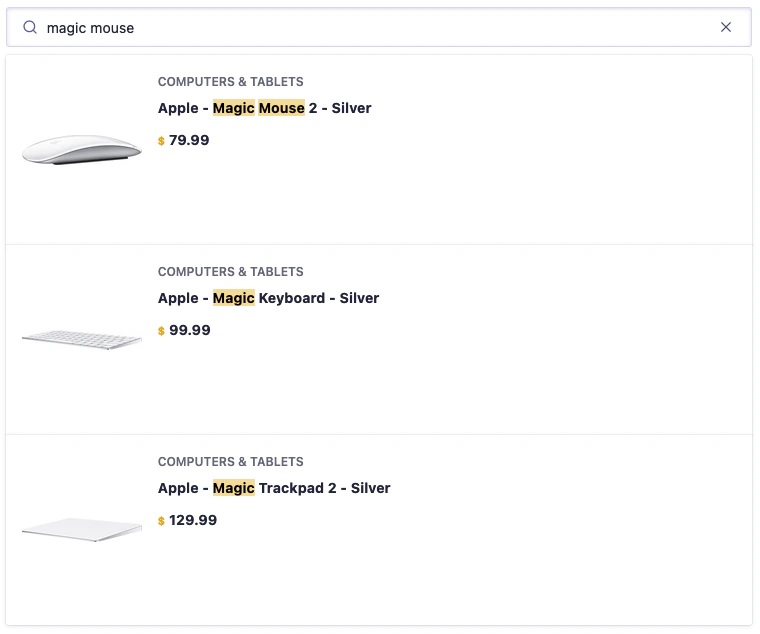
Highlight widget to highlight matches in each attribute.App.jsx
4
Send click and conversion events
To send click and conversion events when users interact with your search UI,
set the
insights option to true.App.jsx
5
Add a filter
A search box is a great way to refine a search experience,
but sometimes users need to narrow down the results to find what they’re looking for in a specific category.
Use
RefinementList to items based on attributes such as brand, size, or color.App.jsx
Replace
INDEX_NAME with the name of your index.6
Paginate your results
The app only shows 20 hits but Algolia returns more results.
Pagination widget to navigate the pages.App.jsx
7
Configure search parameters
You can override any search parameters with
Configure.
This widget doesn’t render anything but instead instructs InstantSearch to send custom search parameters to Algolia.This update sets 40 hits per page.App.jsx
Next steps
With this quickstart, you’ve got a solid starting point for building dynamic search interfaces. To enhance it:- Use your own data.
-
Load hits without pagination using
InfiniteHits. -
Search more than one index with
Index. - Server-side render your app for increased performance.
-
Provide some more refinement widgets. For example:
Menuto refine on a single value per attributeHierarchicalMenuto filter a hierarchy of categoriesToggleRefinementto filter on and off on a given attribute value
CurrentRefinementsto display the active filters and let users remove them individually.